Getting started
To start using Monitor by 2N5, open the invitation 2N5 emailed you, create your password and sign in. This chapter covers your first sign-in, two-step verification, how to recover your password and where to change the language and the theme.
Download the documentation (PDF)Signing in for the first time
You do not create an account yourself: 2N5 sets up your organization and emails you an invitation.
- Open the invitation email and click its link. The Manage page shows your organization’s name and your name, already filled in.
- Type your password in Password and again in Confirm password.
- Tick the box that accepts the Terms of Use and confirms you have read the Privacy Policy.
- Click Start managing. Monitor opens your organization’s dashboard.
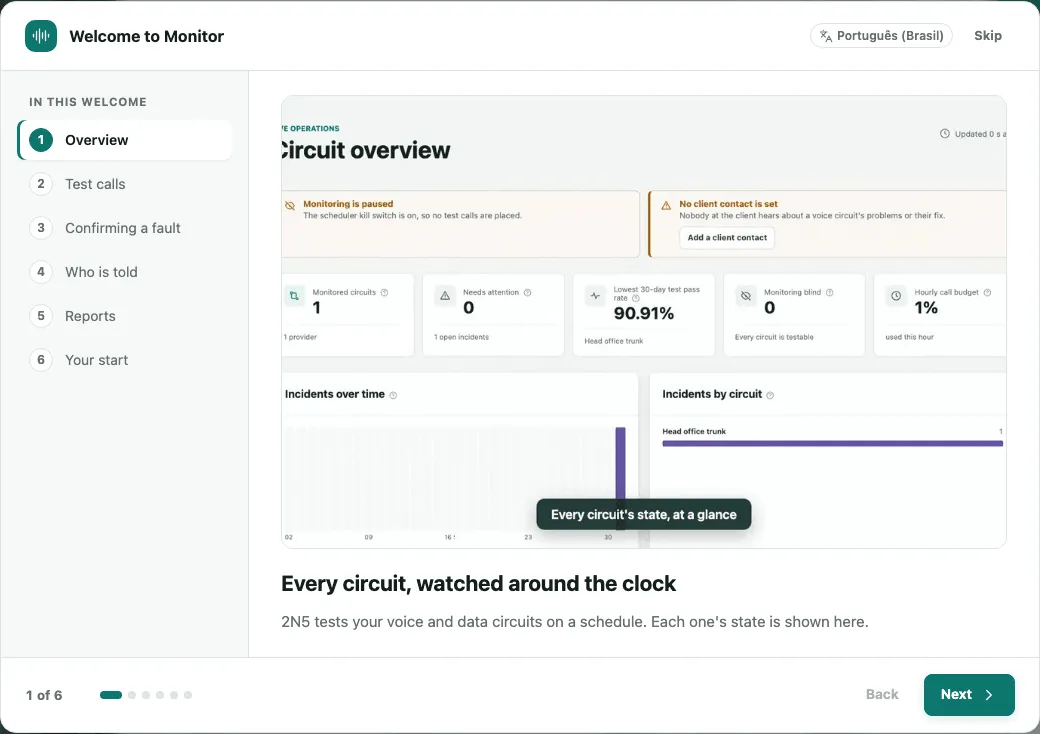
The first time you sign in, a short introduction, Welcome to Monitor, explains in six steps how Monitor works. Use Next to move on or Skip to close it. On the last step you can start the guided walkthrough, which stops once on each page.
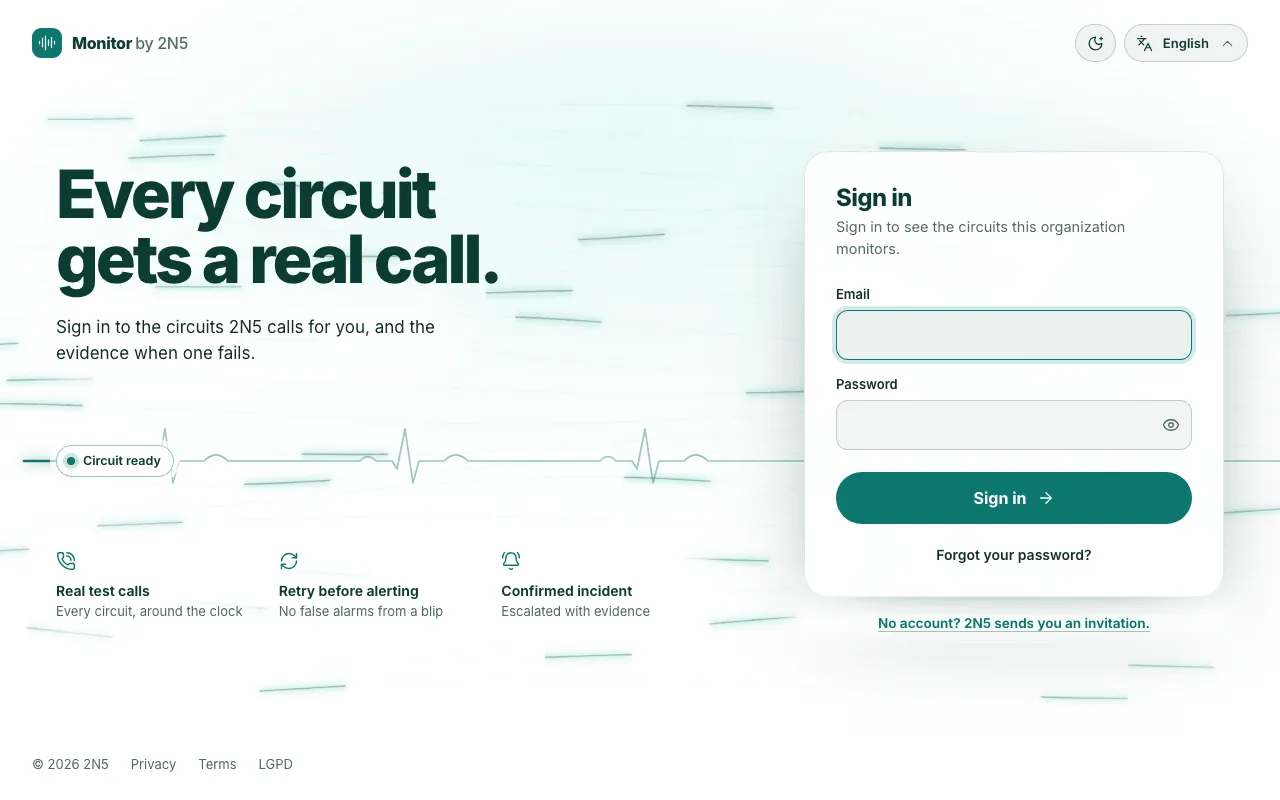
After that, sign in at Monitor’s address:
- Type your Email and Password.
- Click Sign in.
Protecting your account with two-step verification
Two-step verification asks, besides your password, for a six-digit code from an authenticator app on your phone. We recommend turning it on. Your organization can make it required for every manager; Monitor then asks you to set it up right after your password.
- In the bottom-left corner, click your name and choose Account settings.
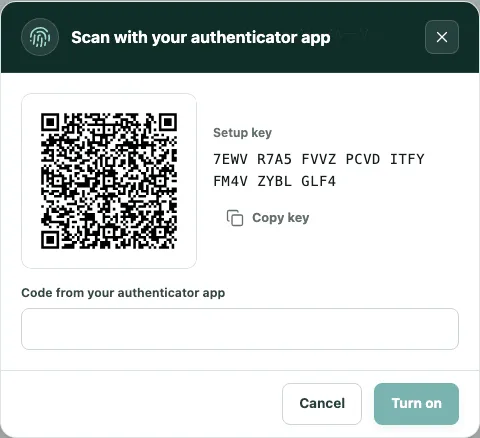
- In the Two-step verification box, click Set up, then Set up again in the window that opens.
- Scan the QR code with your authenticator app. If you prefer, copy the Setup key with Copy key and paste it into the app.
- Type the code the app shows in Code from your authenticator app and click Turn on.
- Save your recovery codes with Copy or Download and click Done. Each code stands in for the app once, if you lose your phone.
From then on, after your password, Monitor asks for the code from the app. Type it and click Verify. Without your phone, choose Use a recovery code.
If you forget your password
- On the sign-in screen, type your email in Email.
- Click Forgot your password?. If that address has an account, a reset link arrives by email.
- Open the link. On the Set a new password page, type the new password in New password and Confirm new password.
- Click Set password, then Go to sign in.
Changing your password signs out every session that was open on your account, on any computer. To change a password you still know, use the Password box in Account settings.
Language
Monitor speaks Brazilian Portuguese and English. The language you choose is saved on your account.
- In the sidebar, click the current language, just above your name.
- Choose English or Português (Brasil).
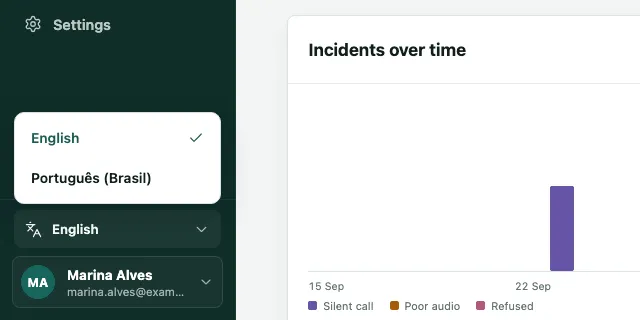
The sign-in screen has the language menu too, in the top-right corner.
Light or dark theme
- Click your name in the bottom-left corner.
- Choose Light, Dark or System. System follows your computer’s theme.
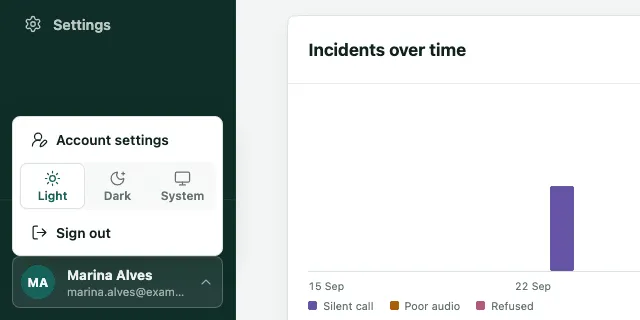
In the same menu, Sign out ends your session on this computer. To end it everywhere, use Sign out of all devices in Account settings.
Frequently asked questions
I never received the invitation. What do I do?
Check your spam folder and any promotions tab for a message from 2N5. If it is not there, ask 2N5 to send the invitation again: the link is valid for seven days, and a new invitation replaces the old one. A person who already manages your organization can also invite you from the Managers screen, with the Invite manager button.
I lost the phone with my authenticator app. How do I sign in?
On the code screen, choose Use a recovery code and type one of the codes you saved when you turned two-step verification on. Each code works once. If you have none left, ask 2N5 or another manager of your organization to reset your two-step verification, then set it up again on the new phone the next time you sign in.
Does the language I choose also apply to the alerts?
No. The language in the sidebar applies to the screens you see, and it is saved on your account, so another computer opens in the same language. Each alert by email goes out in the language of the contact receiving it, set on that contact on the Escalation screen, and a report's language is chosen when you send it.