Reports
A service report is the proof of how your circuits behaved over a period: availability against target, every incident and how long it took to be answered. You generate as many as you like, email them as PDFs and can schedule the monthly one to go out on its own.
Download the documentation (PDF)Reports and the SLA are for Enterprise customers.
Generating a report
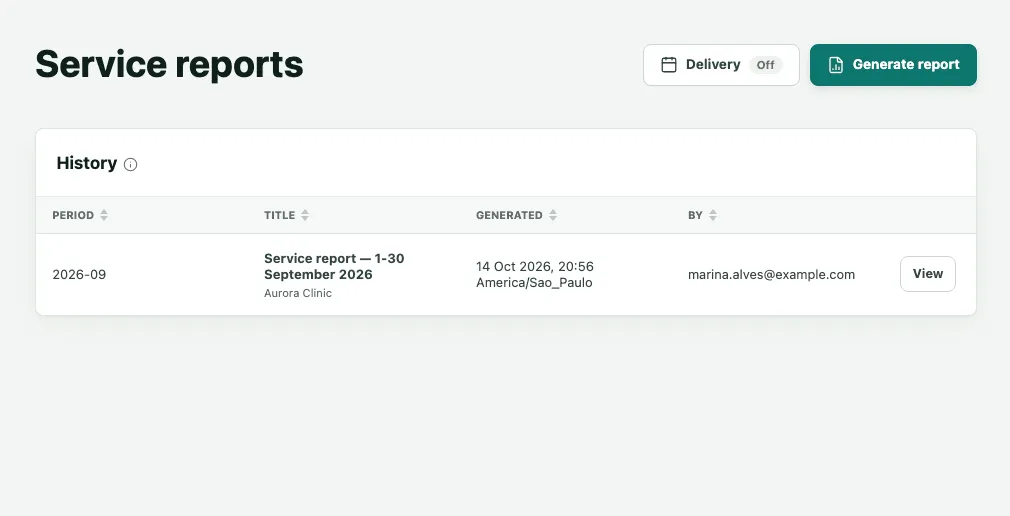
- In the sidebar, click Reports. The Service reports page lists the reports already generated under History, newest first.
- Click Generate report.
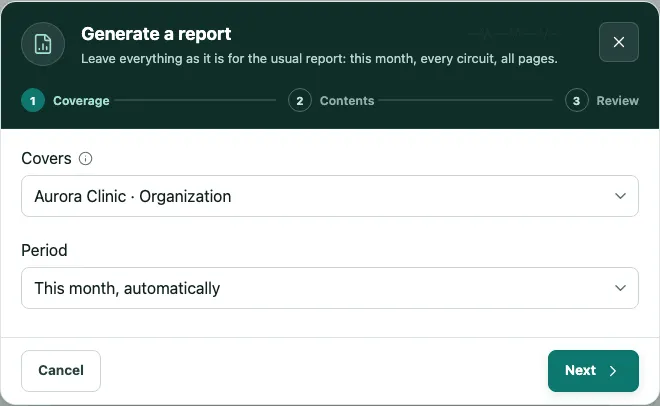
- Under Coverage, choose in Covers the whole organization or one entity, and in Period one of these:
- This month, automatically: the usual report, for the current month.
- A month I choose: to close an earlier month, such as September.
- A custom period: enter the First day and Last day, at most one year in total. That is how you make the yearly SLA report.
- Click Next. Under Contents, write a Title if you like, and choose the Pages to include, the Severities to include and the Circuits. Leaving everything ticked gives the full report.
- Click Next, check the Review and click Generate.
The new report appears at the top of History. Click View to open it.
Reading the report
On screen, the report appears as the pages of the PDF. At the top are Back to history, CSV, Download PDF and Send.
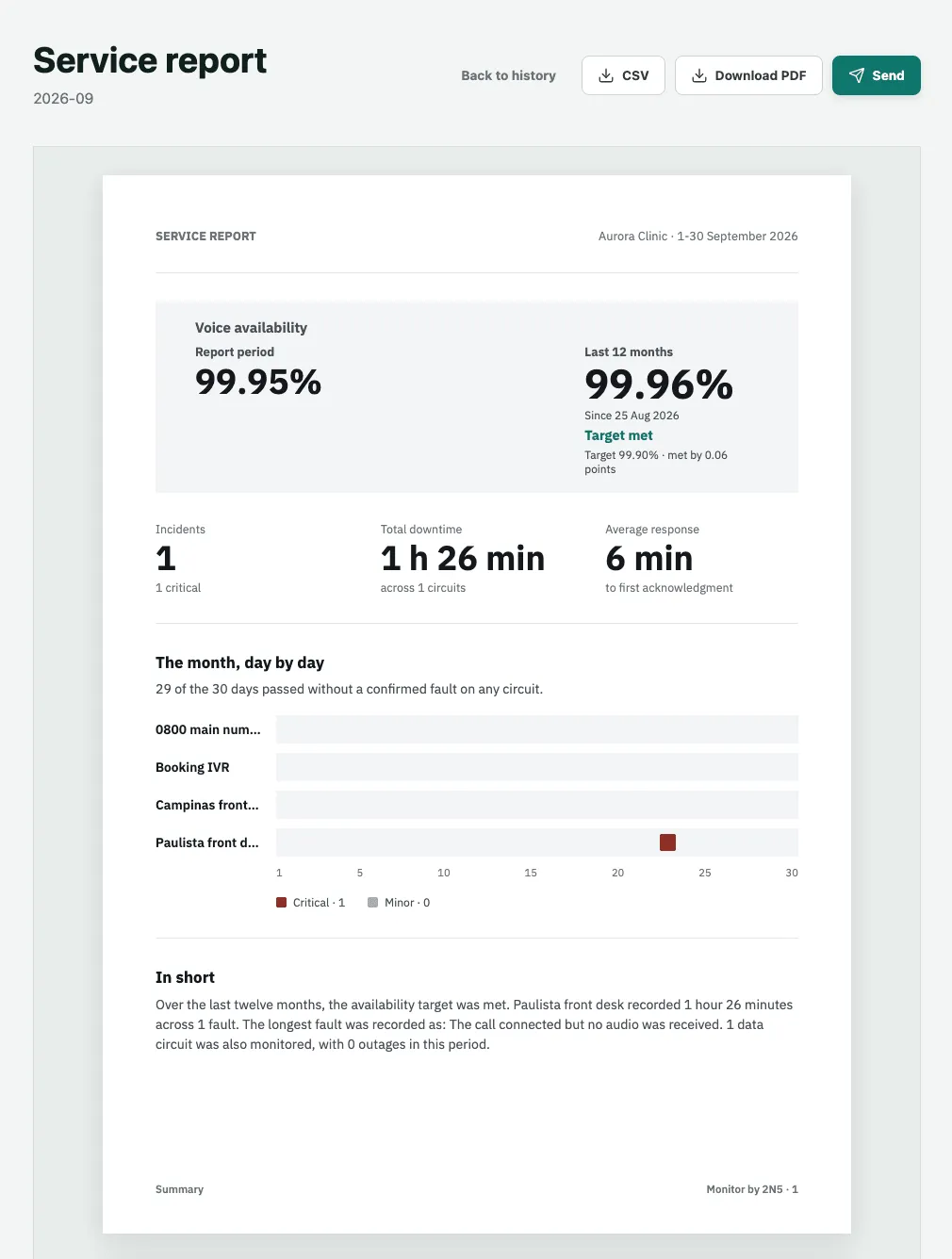
- Summary: the Voice availability for the Report period and the Last 12 months, with the target and whether it was met; the number of Incidents, the Total downtime and the Average response to the first acknowledgment; The month, day by day, with one row per circuit and a mark on each day with a confirmed fault; and In short, a paragraph that tells the month in words.
- What happened: every incident, with its date, the circuit, what Monitor observed, how long it was down and how quickly it was answered, and the total at the end.
- Circuit comparison: every circuit side by side, with its call quality.
- Provider scorecard: each provider, what was promised against what was delivered.
The availability target is under Settings, on the Reports & clock tab, and each provider’s contract terms on the Contracts tab. CSV downloads the figures as a spreadsheet; Download PDF downloads the document.
Sending a report
- Open the report and click Send.
- Under Recipients, choose client contacts or type an address. For each person, choose the pages and the language of the PDF.
- Under Message, write a Note if you like. It appears after the greeting, above the figures.
- Under Review and send, check How the email reads and send it.
Each person receives a PDF holding only the pages chosen for them, with the stored report’s figures exactly as they are. The same report can be sent a few times an hour; after that, Monitor asks you to wait.
Scheduling the monthly report
- On the Service reports page, click Delivery.
- Under Automatic delivery, turn on Send a report every month and choose Produced on (the day) and At (the time).
- Choose the email’s language, adjust its text if you like, and tick Include the headline figures to put availability and incidents in the body of the email.
- Save. Next report shows when the next one goes out and the period it covers: one month back, up to the end of the day before.
Frequently asked questions
Does the report's availability include maintenance windows?
No. Time inside a planned maintenance window is kept out of the figure and shown separately. Time when Monitor itself could not test, Monitoring blind, is kept out too, because it is not an outage of your circuit. Availability is the time up divided by the time measured in the period.
Does a report change if I generate it again later?
Each report is kept exactly as it was produced, with the figures and names of that moment, and always opens the same from History. Generating the same period again creates a new report next to the old one. That lets you send a provider or your directors a document that does not change afterwards.
How do I make the yearly SLA report?
In Generate report, choose A custom period and enter the first and last day of the year, for example from January 1 to December 31. A period can be at most one year. The first page gives the period's availability and that of the last 12 months, compared with your organization's availability target.