The dashboard
The dashboard is the first screen after you sign in, and it answers one question: is everything working right now? The Circuits tab shows your voice and data circuits, and the Online services tab shows your websites and mailboxes.
Download the documentation (PDF)What the dashboard shows
- In the sidebar, click Dashboard.
- At the top, choose the Circuits or the Online services tab. The number on each tab is how many items it shows; a red dot means something is down.
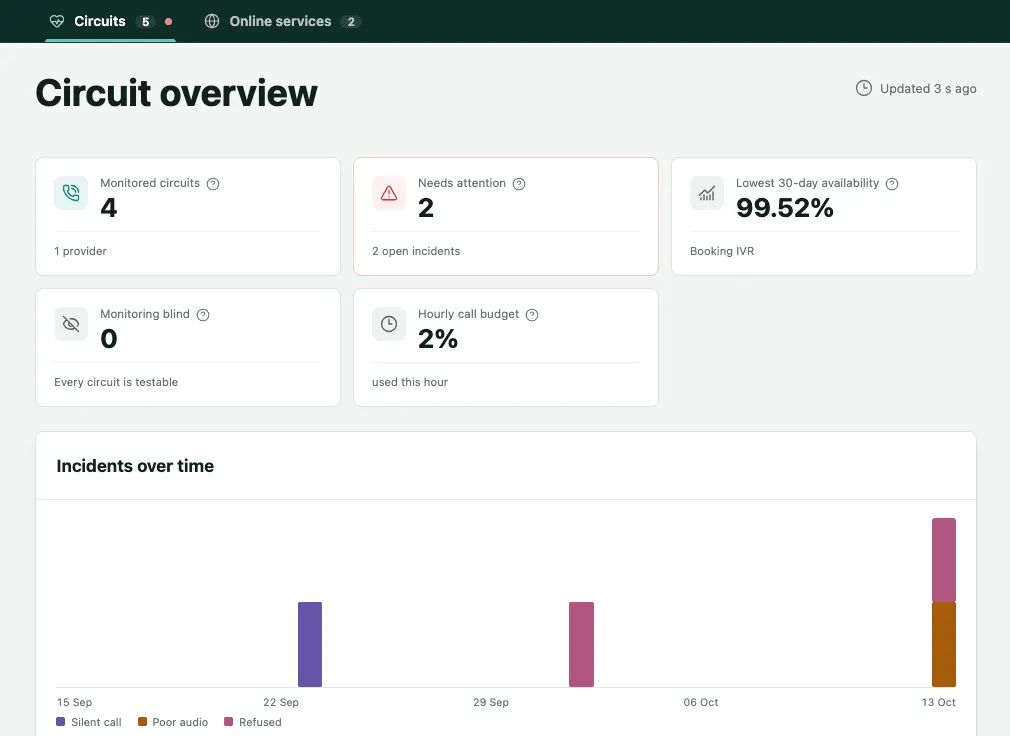
On the Circuits tab, the Circuit overview page opens with five figures:
- Monitored circuits: how many voice circuits your organization watches.
- Needs attention: circuits that are down, degraded or suspect, and how many incidents are open.
- Lowest 30-day availability: the circuit with the lowest availability over the last month, and its value.
- Monitoring blind: circuits Monitor could not test. That is a problem on 2N5’s side, not an outage of yours.
- Hourly call budget: how much of this hour’s allowance of test calls has been used.
Below them, the Incidents over time chart shows the last 30 days of incidents, with one color for each kind of failure.
States and colors
The Voice and data circuits table lists every circuit with its current state:
| State | What it means |
|---|---|
| Up | The latest test passed. |
| Suspect | A test failed and is being retried before anyone is told. |
| Degraded | The circuit answers, but its quality fell below the limit in tests in a row. |
| Down | The outage was confirmed after four failed tests in a row, and an incident is open. |
| Monitoring blind | Monitor could not test it; the time does not count as an outage. |
The Last 24 hours column shows one bar per hour. Green is Up throughout, orange is Degraded, red-orange is Down briefly, red is Down for much of it, purple is Monitoring blind and light gray is Not observed. The Quality column shows the latest measured MOS-LQO of the circuits answered by a recording, and 30-day availability shows the share of the last month the circuit was up.
Click a circuit’s name to open its page, covered in the chapter A voice circuit’s page.
Filtering and sorting
- In the table, click Filter.
- On the left, choose what to filter by: State, Entity or Provider.
- On the right, tick the options. The number next to each one says how many circuits it has.
- Click Done. To see everything again, use Clear all.
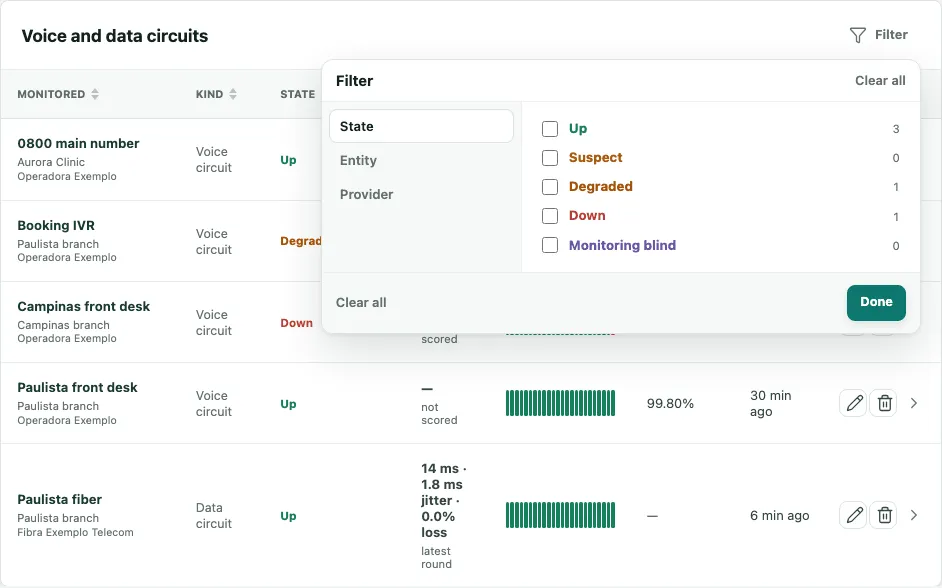
To sort, click a column heading that has the triangle, such as Monitored, State or Last tested. A second click reverses the order.
The Online services tab
The Online services tab does the same for the websites and mailboxes 2N5 monitors for you. The figures at the top are Monitored services, Needs attention, the websites’ Average response over the last 24 hours, Email reaching the inbox and Certificates expiring in the next 14 days.
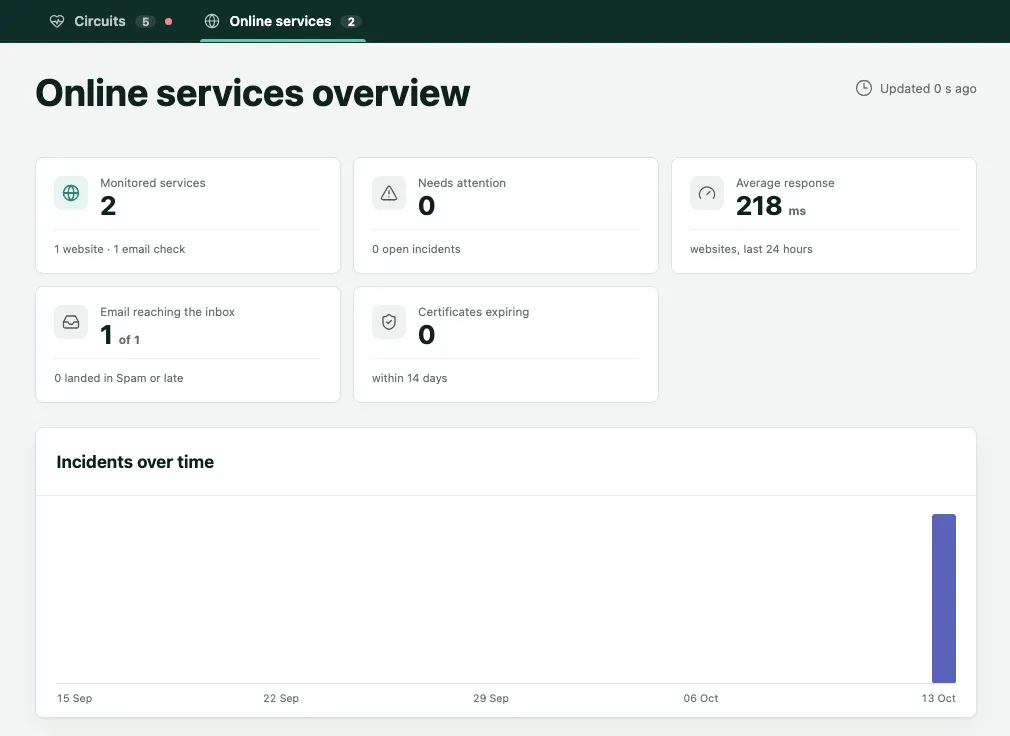
Further down are the Websites and Email tables, with the same filter and sorting. The chapter Websites and email explains each one.
Frequently asked questions
Why is a circuit shown as Suspect when nobody was alerted?
Suspect means one test failed and Monitor is retrying before it tells anyone. A single failure never becomes an alert. An incident opens only after four failed tests in a row, the first one and three retries. If a retry passes, the circuit goes back to Up and nobody receives a message about it.
What does Monitoring blind mean?
It means Monitor itself could not test the circuit, for example because 2N5's own connection failed at that moment. That time is not counted as an outage of your circuit, and it stays out of the availability in your reports. 2N5 is alerted and takes care of it; there is nothing you need to do.
Does the dashboard update by itself?
Yes. The dashboard receives changes live, without reloading the page, and shows in its top-right corner how long ago it was updated. At the top of the screen, Monitoring live means the tests are running normally. If the connection drops, the dashboard says so and keeps the last good data on screen while it reconnects.