A voice circuit's page
Every voice circuit has a page with everything Monitor knows about it: its state now, the last 100 hours, the measured voice quality, its incidents and every test call. It is also where you tell 2N5 about planned maintenance.
Download the documentation (PDF)Opening the circuit’s page
- On the Dashboard, in the Voice and data circuits table, click the circuit’s name.
- To go back, use Circuits in the path above the name.
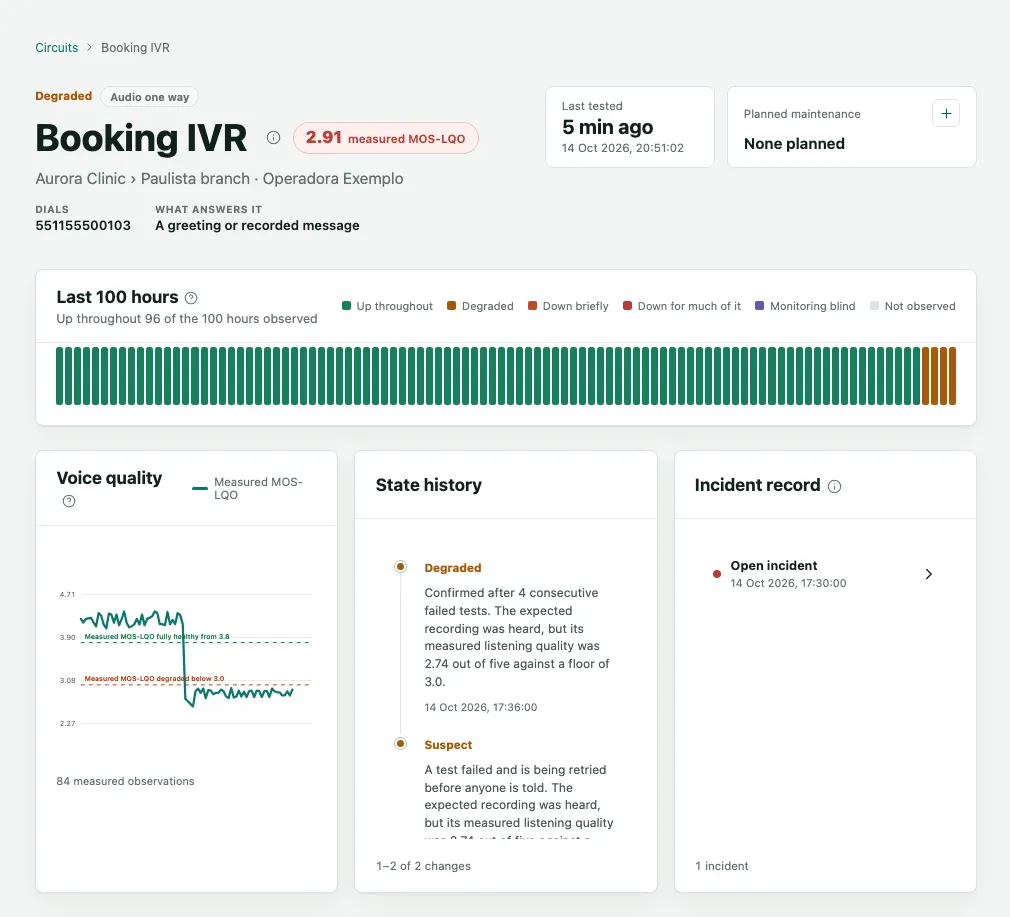
At the top of the page you find:
- The circuit’s state, such as Degraded, and how much of the call was proven, such as Audio one way or Audio both ways.
- The measured MOS-LQO of the latest scored call, in red when it is below the limit.
- The circuit’s organization, entity and provider, the number Monitor Dials and What answers it: A greeting or recorded message, A test tone or echo service or Other: it may ring or be answered.
- Last tested: when the latest test call was made.
- Planned maintenance: the next window on record, if any.
The last 100 hours
The Last 100 hours box has one bar per hour and shows what the run of tests concluded in each hour, in the same colors as the dashboard. Hover over a bar to see the hour and what happened; a bar with an incident leads to it.
Voice quality: MOS and MOS-LQO
MOS (Mean Opinion Score) is the 1-to-5 scale telephony uses to say how a call sounds to the person listening: close to 4.5 is excellent, and below 3 a conversation gets hard. MOS-LQO is the same scale calculated from the audio, with no listeners: Monitor compares the audio each test call received with the expected recording, using a reference-based perceptual listening-quality model that returns MOS-LQO (ITU-T P.800.1).
The Voice quality chart shows the score of each answered call over the last hours, with two lines:
- degraded below 3.0: calls below this line count as degraded. When that repeats in tests in a row, the circuit becomes Degraded and an incident opens.
- fully healthy from 3.8: above this line a call counts as fully healthy.
These limits belong to your organization and are under Settings, on the Quality thresholds tab. Circuits not answered by a recording show not scored. The glossary explains MOS and MOS-LQO in more detail.
State history and incidents
- State history lists every change of state, newest first, with its reason and time. An outage shows first as Suspect, when the first test fails, then as Down or Degraded, once it is confirmed after four failed tests in a row.
- Incident record shows confirmed failures only. Click an incident to open its page, covered in Incidents and alerts.
The observation log: every test call
Further down, the Observation log keeps every test call, newest first:
- Tested: when the call was made, and when it was due.
- Verdict: what the call concluded.
- SIP: the provider’s response code, such as 200 for answered.
- Answer: how long the call took to be answered.
- RTP sent / received: the audio packets sent and received.
- MOS-LQO and Heard: the call’s score and whether the expected recording was heard.
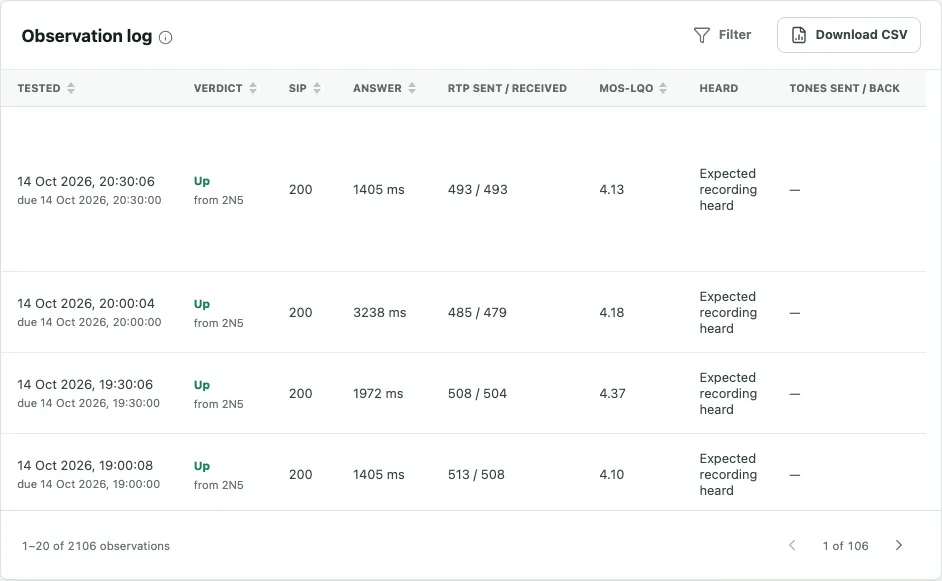
Use Filter to see only one kind of result and Download CSV to take the log into a spreadsheet. The arrows at the foot turn the pages.
Adding planned maintenance
If your provider or your own team is going to work on the circuit, add a maintenance window. Failures inside the window open no incident, and the time stays out of availability.
- On the circuit’s page, in the Planned maintenance box, click + (Add a window).
- Under What the work is on, check the circuit. You can choose other circuits at the same entity.
- In Start date and Start time, enter when the work starts. Times are in your organization’s time zone, shown beside them.
- Choose how long it Lasts (1 h, 2 h, 4 h, 8 h or 24 h), or fill in End date and End time.
- Write the Reason, for example replacing a piece of equipment.
- Click Save window.
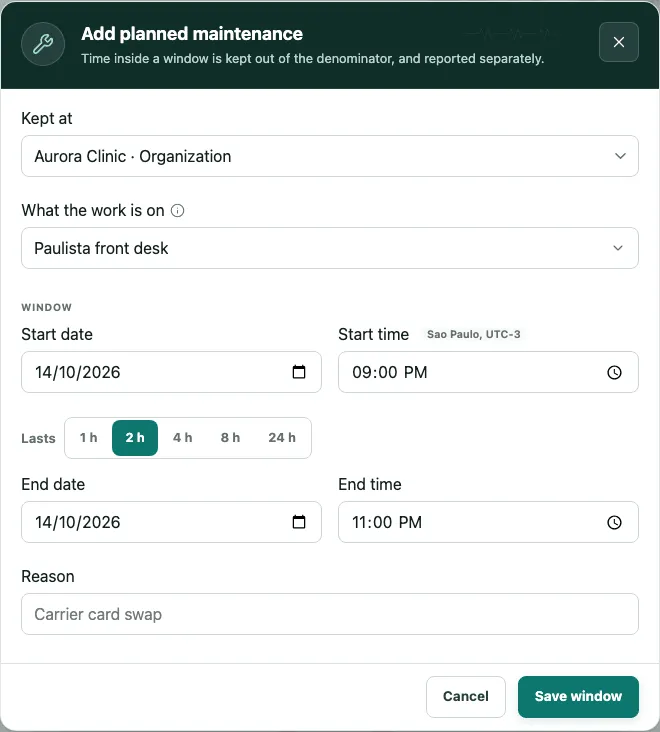
The window appears in the Planned maintenance box and can be deleted there, as long as it has not happened yet.
Frequently asked questions
Why does my circuit show not scored under quality?
The MOS-LQO score is measured only when the circuit is answered by a greeting or recorded message, because it compares the audio the call received with the expected recording. A circuit that rings or is answered by a person is tested by the call itself, without a score. If you want the score, ask 2N5 to set up the circuit's reference recording.
Does a failure during planned maintenance count against availability?
No. Time inside a maintenance window is kept out of the availability figure and reported separately in your reports, and a failure in that time opens no incident and alerts nobody. Add the window before the work starts: a window does not change what was recorded before it existed.
Can I change how often the circuit is tested?
Each circuit keeps the values it was added with: the interval between tests, the interval between retries and how many retries to make before an outage is confirmed. To change them on an existing circuit, ask 2N5. The values on the Settings screen apply to circuits added afterwards.