Data circuits and the agent
A data circuit is a site's internet link, measured by an agent: a small service that runs in the background on a computer at that site. The circuit's page shows whether the link is up, the quality of the connection and how much of the contracted speed actually arrives.
Download the documentation (PDF)What you see of a data circuit
- On the Dashboard, Circuits tab, data circuits appear in the same table as voice circuits, with the Kind Data circuit. The Quality column shows the latest round’s latency, jitter and loss.
- Click the circuit’s name to open its page.
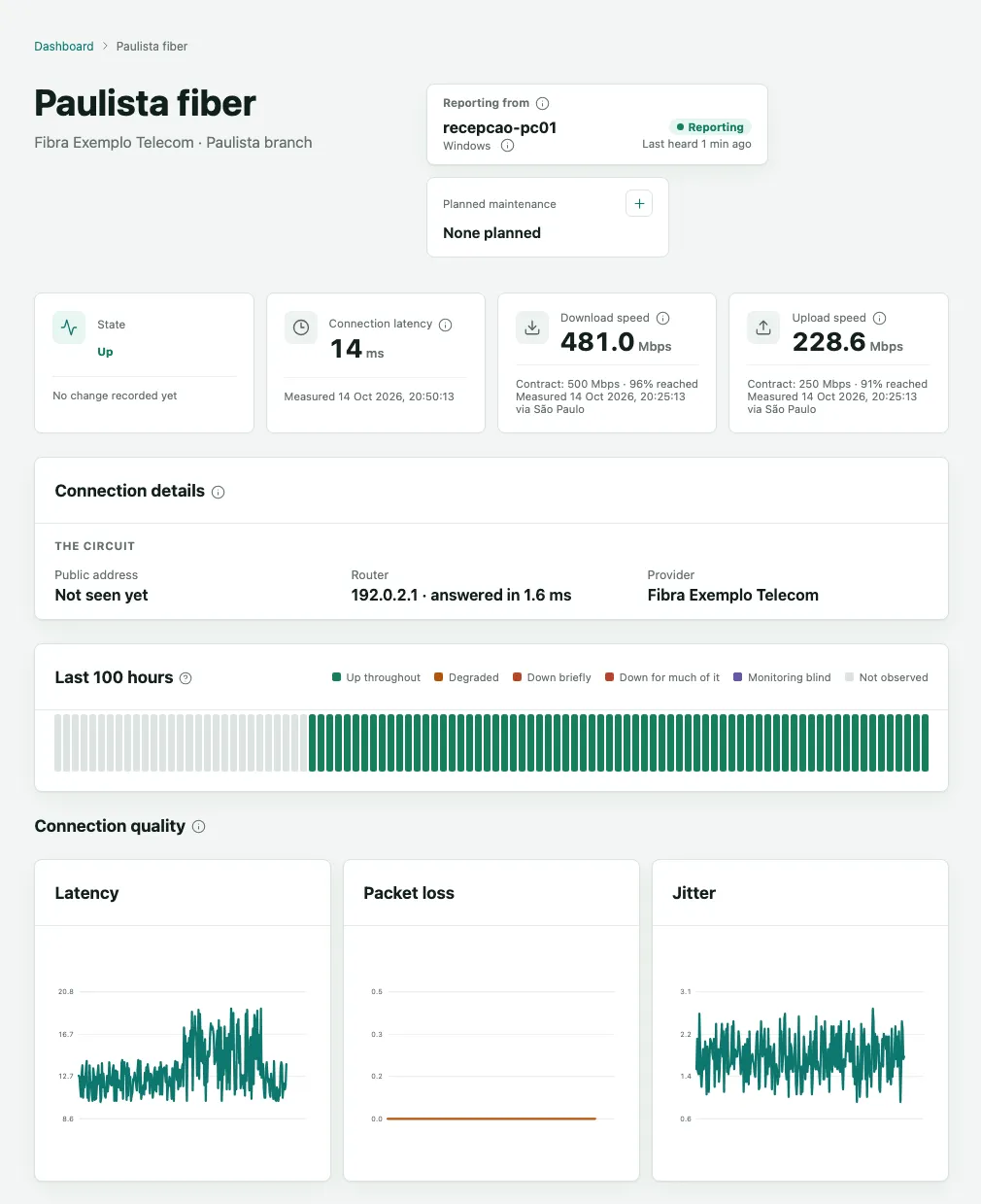
On the circuit’s page:
- Reporting from shows the computer the agent runs on, its system and when it was last heard from. Reporting in green means readings are arriving.
- State is Up, Degraded or Down. A link outage is confirmed by further measurements, as with voice circuits, and only then does it open an incident and alert the escalation ladder.
- Connection latency is the round trip to the internet, in milliseconds.
- Download speed and Upload speed show the latest speed test and how much of the Contract it reached.
- Connection details shows the public address, the site’s router (and whether it answered) and the provider.
- Last 100 hours has one bar per hour, in the dashboard’s colors.
- Connection quality holds the Latency, Packet loss and Jitter charts, and Connection speed the Download and Upload tests.
- The Observation log, at the foot of the page, keeps every measurement round, with Filter and Download CSV.
Because the agent also measures the site’s router, Monitor can tell a router fault apart from a provider fault.
Installing the agent with 2N5’s help
2N5 usually installs the agent with you: it agrees a time, confirms which computer will run the agent and records your written authorization. Choose a computer at the site that stays on and uses the link to be measured.
Until an agent reports, the circuit’s page shows Waiting for its agent, with two choices: Install on another computer and Set up this computer. To install it together with 2N5:
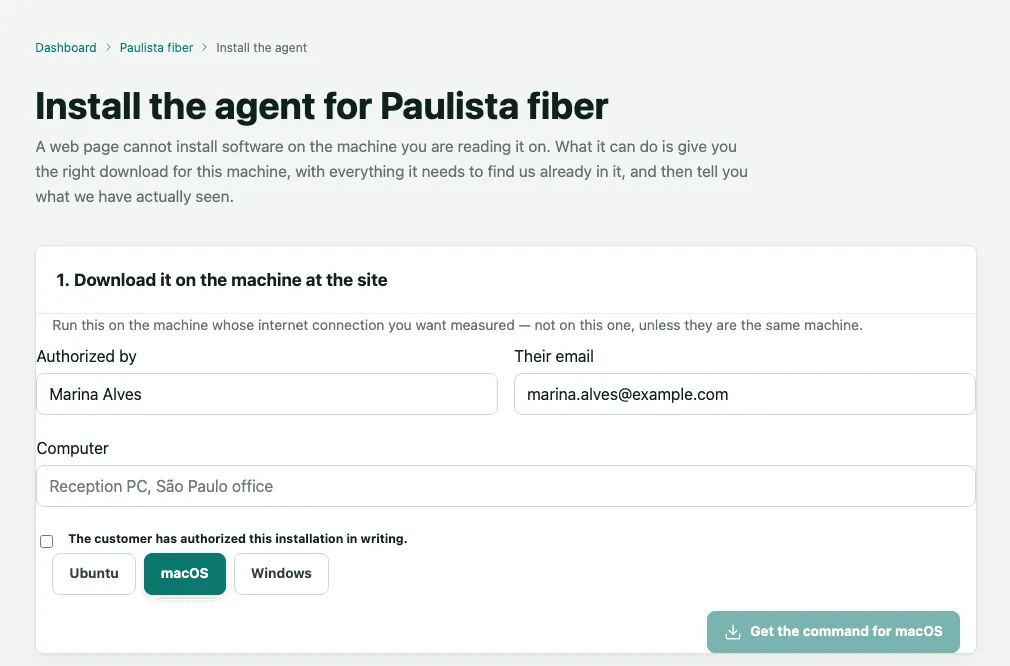
- Open the circuit’s page on the computer at the site and click Set up this computer. The Install the agent for page shows the circuit’s name.
- Check Authorized by and Their email, which carry your name, and write in Computer which machine it is, for example the reception PC.
- Tick The customer has authorized this installation in writing.
- Choose the computer’s system and click Get the command for. Run the command on that computer, as 2N5 guides you.
- Watch 2. What we have seen: its steps move on by themselves as Monitor sees the agent register and send its first readings.
Once the agent reports, the circuit’s page shows its measurements. The first hours of the Last 100 hours box stay light gray, as Not observed, because they come before the install.
What only 2N5 changes
How often the link is measured and its speed tested, the limits that make it count as degraded or down, how long a silence counts as a quiet agent, and the check from outside are set by 2N5, because 2N5 answers the link’s alerts. To change any of them, ask 2N5.
Frequently asked questions
Does the agent leave a port open on the computer?
No. The agent makes outbound connections only: it measures the site's link and sends the readings to 2N5, without opening any incoming port on the computer or the network. It sends link measurements only, from a fixed list. If your security team wants the details, ask 2N5 for the list of what the agent measures.
What happens if the agent's computer is switched off?
The readings stop arriving and the agent shows as no longer reporting. That alone does not mean the link is down, because a quiet agent may just be a computer that was switched off. 2N5 is alerted when an agent goes quiet and agrees with you what to do. That is why the agent belongs on a computer that stays on.
What if the site has no computer for the agent?
Ask 2N5 for a check from outside. 2N5 then tests from outside whether the link answers, up or down, without measuring speed, latency, loss or DNS. It needs a fixed public address; a link behind shared addressing (CGNAT) cannot be checked this way.