People and organizations
Monitor has two kinds of people: managers, who sign in and see the screens, and contacts, who receive alerts and reports without signing in. The organization's structure, in entities, decides what each manager sees.
Download the documentation (PDF)Managers and contacts
- Managers sign in to Monitor with an email and password. They see the dashboard, incidents and reports for the part of the organization they manage, and look after the escalation ladder, the entities and the other managers.
- Contacts do not sign in. They are the people on the escalation ladder, who receive alerts with the link to acknowledge, and the Client contacts, who receive the down and back-up updates and can receive reports. Contacts are added under Escalation, as the chapter Incidents and alerts explains.
Entities: the organization’s structure
The organization sits at level 0, and below it come companies, branches, offices or departments, in as many levels as you need. Every circuit, website and mailbox sits at one entity.
- In the sidebar, under Community, click Entities.
- The table shows each entity with its Level, Type, how many Circuits it has, the Storage used, when it was Created and its Managers. Use Name or type to search.
- To create an entity, click Add entity, give it a name, choose one of the organization’s types or type a new one, and choose under Placed below where it sits.
- To download the structure as a spreadsheet, click Export CSV.
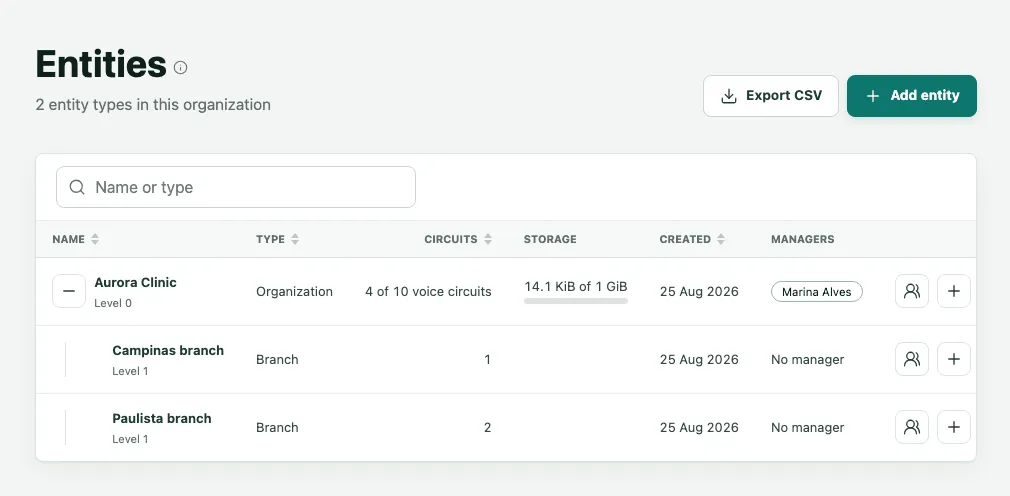
Moving an entity carries everything below it, and every circuit keeps its history. An entity can be deleted only when nothing is below it and no circuit is in it.
Inviting a manager
- Under Community, click Managers. The list shows every manager with their Email, Entity, status and Last signed in, and the invitations still waiting for an answer.
- Click Invite manager.
- Fill in the Name and email and choose the entity the person will manage.
- Click Send invitation. The person receives the email, sets their own password from the link and signs in.
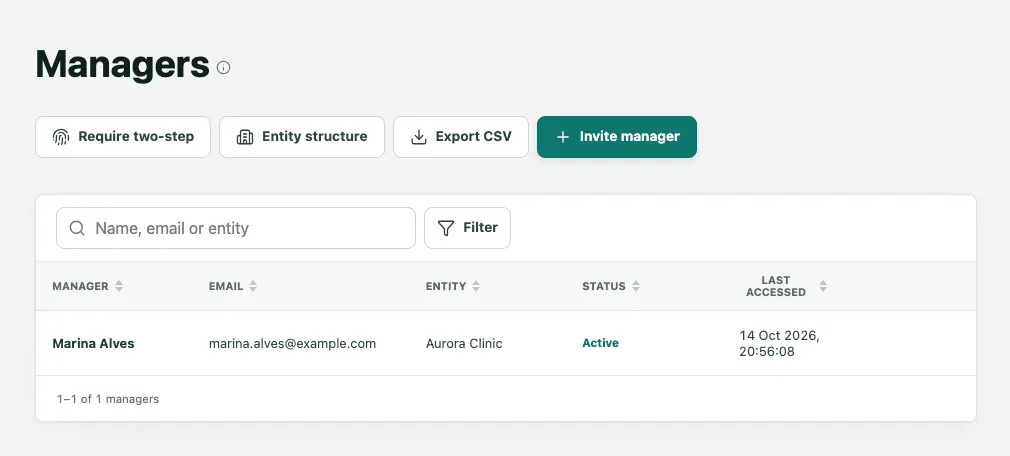
While an invitation waits, the list shows until when its link is valid, with Send again and Withdraw. To take somebody’s access away, use Remove manager: they are signed out at once. Require two-step makes two-step verification required for the organization’s managers.
Who sees what
A manager sees the entity they manage and everything below it, and nothing beside it:
| Manager of | Sees |
|---|---|
| The organization (level 0) | Every entity, circuit, incident and report. |
| One branch | That branch only, and whatever is below it. |
The dashboard, the incident list, the reports and the entities adjust by themselves to what each manager may see. A report generated by a branch’s manager covers only that branch.
Providers
Under Community, Providers lists the providers of your circuits, with each one’s technical support contact. That is where the address for an incident’s evidence is kept, for when a ticket has to be opened.
Frequently asked questions
Does a branch's manager see the other branches' circuits?
No. A manager sees the entity they manage and everything below it, and nothing beside it. The Campinas branch's manager sees only Campinas's circuits, incidents and reports; the organization's manager sees every branch. An entity can have several managers, and whoever manages an entity can invite managers to it and to the entities below it.
What is the difference between a manager and a contact?
A manager has a sign-in: they open Monitor, see the dashboard, generate reports and change what their account allows. A contact does not sign in; they receive the escalation ladder's alerts, with the link to acknowledge, or the updates and reports meant for the client. The same person can be a manager and a contact at once.
What happens to the history when a manager leaves the company?
Remove the manager on the Managers screen: they are signed out at once and can no longer see the organization. The circuits, incidents, reports and history stay with the organization. The acknowledgments they made stay on the incidents, under their name, as the record of what happened.